Your iPhone can use your location to determine your current time zone.
This information can then be used to display the correct local time.
But if the time zone is incorrect, or if you would like to see the time on your iPhone as though you were in a different time zone, then you might be wondering if that’s possible.
Fortunately, this is something that you can do, and our tutorial continues below with more about how to change time zone on iPhone 13.
How to Switch iPhone Time Zones
- Open Settings.
- Select General.
- Choose Date & Time.
- Tap Set Automatically to turn it off.
- Select Time Zone.
- Search for and select a city in the time zone you want.
Our guide continues below with additional information on this topic, including pictures of these steps.
The default setting on the iPhone is for your time to be set automatically.
This not only means that the device will update for daylight savings time, but that it will also adjust accordingly if you enter a different time zone.
However, you might prefer to see the time on your iPhone as though you were at home when you are traveling, or if you work remotely, you might want your time to display as though you were in the same location as your home office.
Our article will help you find this option on your device so that you can use a custom time zone on your device.
Related: Find out how to change the military time on an iPhone if you would prefer to use a 24-hour clock.
How to Manually Set the Time Zone on an iPhone
The steps in this article were performed on an iPhone 13 in the iOS 16 operating system.
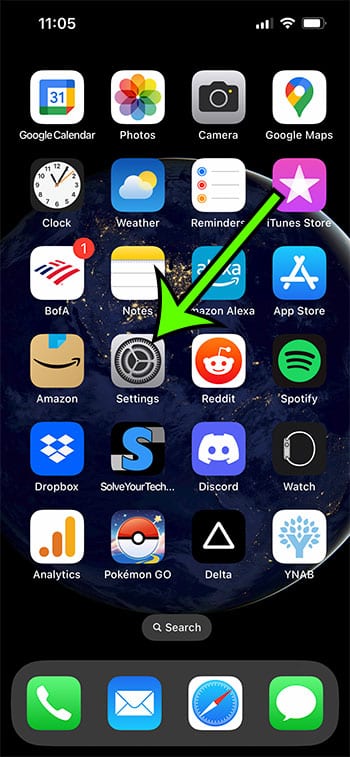
Step 1: Open the Settings app on your iPhone.
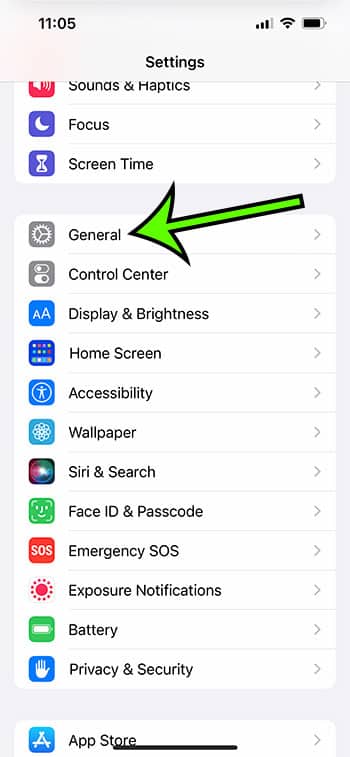
Step 2: Scroll down and choose the General option.
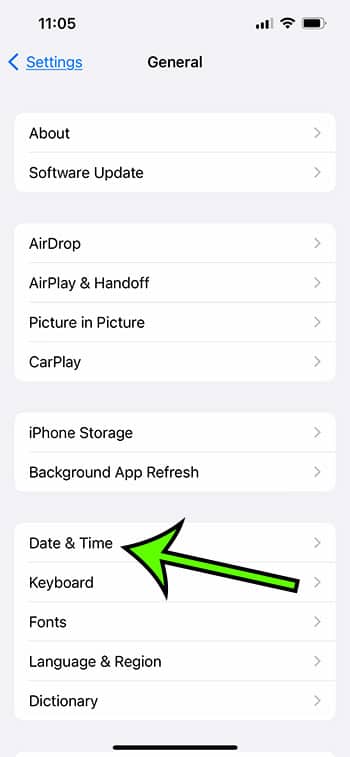
Step 3: Touch the Date & Time button.
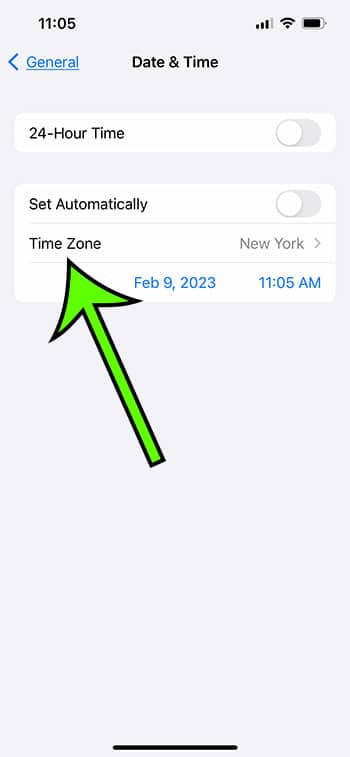
Step 4: Turn off the Set Automatically option.
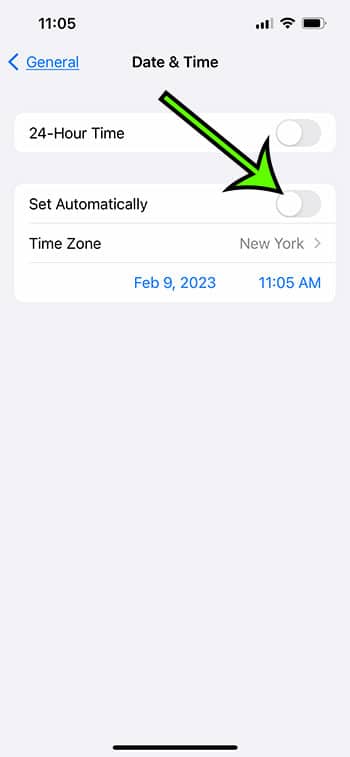
Step 5: Touch the Time Zone button.
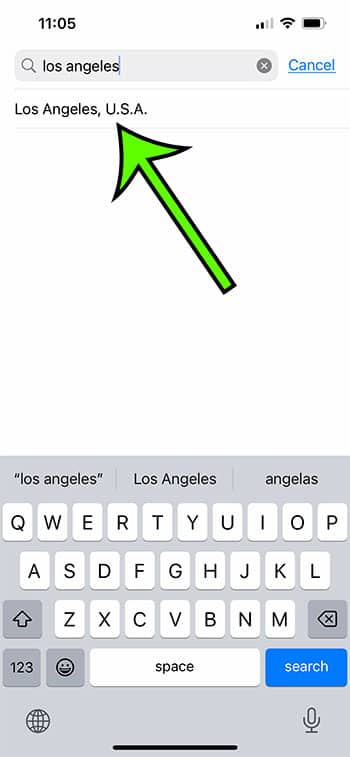
Step 6: Search for a city in the time zone you wish to use, then select it from the list of search results.
Now that you know how to change time zone on iPhone 13, you will be able to come back to this menu and change this setting any time that you want to display time as though you were in a different location.
More Information About iPhone Time Zones
Another setting can also impact your iPhone’s ability to change the time. It is a setting on the Location Services menu that can be accessed by navigating to:
Settings > Privacy > Location Services > System Services
Make sure that the Setting Time Zone option is set on if you want your iPhone to automatically change the time zone based on your geographic location. In the image above, it is switched on.
What happens with booked calendar events is one minor restriction to the iPhone’s ability to update based on a time zone change. The iPhone calendar has a feature called Time Zone Override. This is accessible via Settings > Calendar.
Now that you know the answer to the question, “Do iPhones automatically shift time zones?” you may travel with confidence, knowing that your phone will display the right time when you land or arrive at your destination.
If you disable the setting, as shown in the image above, your iPhone will alter the times for calendar events based on your current time zone.
If you prefer to get calendar event notifications based on a different time zone, turn on the Time Zone Override option and specify the time zone that you want to use.
If you have exhausted all other possibilities, make sure that airplane mode is not activated. If you put your phone in airplane mode before boarding a plane and never turn it off, your phone may not display the correct time zone until you disable airplane mode.
The iPhone time zone should change after the phone reconnects to the Internet, which should resolve any time zone issues you were experiencing.
Is it possible to change the time zone on your iPhone automatically in iOS 9?
In most versions of iOS, the option to automatically update time zones can be turned on or off. This covers previous versions, such as iOS 9.
If you’ve never changed your time, date, or location services, the phone should automatically update the time zone as you travel.
When traveling, does the iPhone’s time automatically change?
Assuming you haven’t changed a setting on your iPhone that affects automatic time updates or prevents your system services from utilizing your location, the time should update automatically.
You can confirm this by navigating to Settings > General > Date & Time and selecting the Set Automatically option.
Then, go to Settings > Privacy > Location Services > System Services > and ensure that Setting Time Zone is enabled.
Does the iPhone automatically switch time zones in iOS 15?
Your iPhone uses your location for a variety of purposes, one of which is to set the time.
If you have your iPhone set to automatically update the time, the only way it would not do so is if you have banned a certain system service from using your location.
Setting Time Zone is located on the System Services menu, within the Location Services section of the Privacy menu.
How can I manually adjust the time and date on my iPhone?
If you want to change the time or date on your iPhone to something other than what is set automatically, you will need to disable a specific setting.
You may disable the Set Automatically option in Settings > General > Date & Time, allowing you to manually set the time and date on your phone.
It should be noted that if you choose an inaccurate time, many websites and apps may not function properly.
Why can’t I turn off the “Set Automatic” option in the Date & Time settings on my iPhone?
If you are unable to switch off the option that automatically sets your date and time, you most likely have the Screen Time function active.
To prevent your iPhone from automatically setting the state and time, navigate to Settings > Screen Time > Turn Off Screen Time.
It’s worth noting that you’ll need to know the Screen Time passcode to turn it off if one is currently set on your phone.
Why is my iPhone set to the incorrect time zone?
If your iPhone believes you’re in the wrong time zone, it’s because you’ve set it to manual time or you’ve prevented a system service from identifying the right time zone.
When you open the Settings app, you may open the Date & Time menu by searching for “date” in the search area at the top of the screen. If the option on that screen is set to automatic, the incorrect date, time, or time zone is not the problem.
This indicates that the option to enable time zone override is enabled, therefore, go to the location time zone settings menu under Settings > Privacy > Location Services > System Services > Setting Time Zone and enable it.

Matt Jacobs has been working as an IT consultant for small businesses since receiving his Master’s degree in 2003. While he still does some consulting work, his primary focus now is on creating technology support content for SupportYourTech.com.
His work can be found on many websites and focuses on topics such as Microsoft Office, Apple devices, Android devices, Photoshop, and more.